Mastering Day 12: What, Why & How
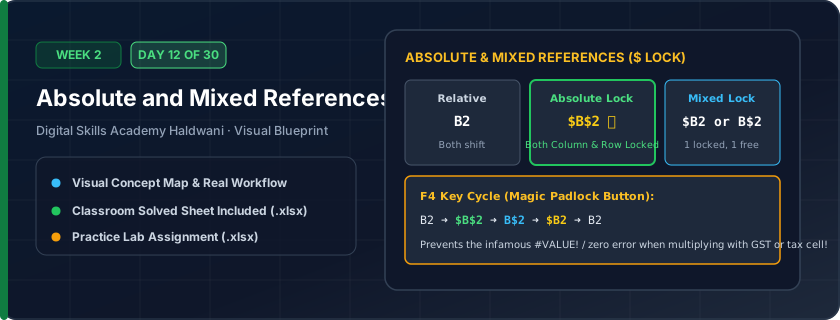
Locking a cell reference with dollar signs ($) so its coordinates never change when copied or dragged. Cell $B$1 is anchored permanently to column B and row 1.
When calculating GST where the 18% tax rate sits in cell B1, a normal relative formula would shift to B2, B3, B4 (blank cells) as you drag down, producing ₹0. Locking with $B$1 keeps the tax cell frozen.
"Think of '$' as handcuffs or an anchor! Press F4 to anchor the cell so it stays locked forever."
What You Will Master Today
- Why do we need locking? To prevent formula references from moving when referencing fixed parameters
- Absolute Reference ($A$1): Locks BOTH Column and Row completely
- Mixed Reference (A$1): Locks Row 1, but allows Column to shift
- Mixed Reference ($A1): Locks Column A, but allows Row to shift
- The magic F4 shortcut key to cycle through all 4 reference states
Step-by-Step Practical Walkthrough
Place your fixed value (such as 18% GST tax rate) in a dedicated parameter cell (e.g., $B$2).
In your formula, type '=D5*B2' and immediately press the F4 key once.
The formula converts to '=D5*$B$2'.
Copy the formula down 50 rows: D5 shifts to D6, D7, D8, but $B$2 stays firmly locked!
Haldwani Kumaon Electronics - Standard GST 18% Billing Invoice
Study the completed reference worksheet below. Every column illustrates the standard formatting, formula structure, and alignment applied by professional office operators.
| Item Code | Product Name | Units | Unit Price (₹) | Taxable Value (₹) | GST 18% [Locked $C$2] | Invoice Total (₹) |
|---|---|---|---|---|---|---|
| ELEC-01 | Lenovo ThinkPad Laptop | 4 | ₹52,000.00 | ₹208,000.00 | 37440 | 245440 |
| ELEC-02 | Canon Laser Printer MF3010 | 3 | ₹16,500.00 | ₹49,500.00 | 8910 | 58410 |
| ELEC-03 | Sony Bravia 43-inch 4K TV | 2 | ₹41,000.00 | ₹82,000.00 | 14760 | 96760 |
| ELEC-04 | SanDisk 2TB External SSD | 8 | ₹12,500.00 | ₹100,000.00 | 18000 | 118000 |
| ELEC-05 | JBL Commercial PA Speaker | 6 | ₹8,500.00 | ₹51,000.00 | 9180 | 60180 |
Corporate Employee Bonus Distribution Model
- Task 1: Set cell D2 as the Master Bonus Rate (12.00%).
- Task 2: In Column F (Bonus Payable), enter formula '=D5*$D$2' using F4 to lock $D$2.
- Task 3: Drag the formula down to row 9 and verify that every row correctly multiplies by cell D2.
- Task 4: Change cell D2 from 12% to 15% and observe how all bonus figures update instantly!
Exercise Data Template Preview: Download the .xlsx file below and execute each task independently.
| Emp Code | Employee Name | Department | Annual CTC (₹) | Bonus % [Locked $D$2] | Bonus Payable (₹) |
|---|---|---|---|---|---|
| EMP-101 | Rahul Joshi | Sales & Marketing | 480000 | 12.0% | |
| EMP-102 | Pooja Bisht | Accounts & Finance | 540000 | 12.0% | |
| EMP-103 | Deepak Rawat | Operations Lab | 420000 | 12.0% | |
| EMP-104 | Sneha Arya | Human Resources | 460000 | 12.0% | |
| EMP-105 | Amit Negi | Information Tech | 580000 | 12.0% |
If your formula produces '#VALUE!' or 0 when dragged down, 95% of the time you forgot to lock your reference with '$' using F4!
Need 1-on-1 Guidance on Day 12?
Join our hands-on classroom lab sessions at Digital Skills Academy in Haldwani. Every student receives a dedicated PC workstation, live instructor reviews, and interview prep.