Mastering Day 22: What, Why & How
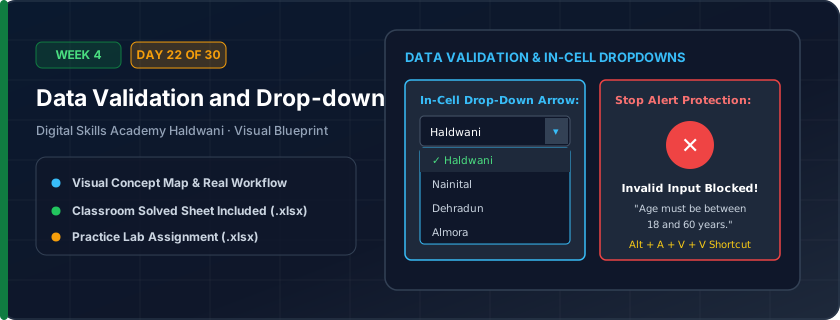
Restricting what users can enter into a cell by providing an in-cell clickable dropdown list or numeric range limit (e.g., Age must be between 18 and 60, or City must be picked from a list).
Prevention is 100x better than cure! If data entry staff select from a standardized dropdown ('Cash', 'UPI', 'Card'), reports and formulas will never fail due to spelling variations.
"Garbage prevention is better than garbage cleaning! Dropdowns guarantee clean, standardized entries every time."
What You Will Master Today
- Data validation criteria: List, Whole Number, Decimal, Date, Text Length
- Creating in-cell dropdown lists using comma-separated values or sheet cell ranges
- Input Messages: helpful hover tooltips guiding data operators on required format
- Error Alerts: 'Stop' (blocks invalid data), 'Warning', and 'Information' dialogs
Step-by-Step Practical Walkthrough
Select the cell or column where you want to restrict user entry.
Go to Data tab > Data Validation.
In Settings, under 'Allow', choose 'List'.
In 'Source', type comma-separated values (e.g., 'Cash, UPI, Credit Card, Bank Transfer') and click OK.
Haldwani Hotel Mountain View - Guest Room Reservation Form
Study the completed reference worksheet below. Every column illustrates the standard formatting, formula structure, and alignment applied by professional office operators.
| Booking ID | Guest Name | Room Category [Dropdown] | Nights Stay [1-30] | Payment Mode [Dropdown] | Check-In Status |
|---|---|---|---|---|---|
| BKG-701 | Rohan Mehta | Deluxe AC | 3 | Credit Card | Confirmed |
| BKG-702 | Pooja Verma | Executive Suite | 2 | UPI | Confirmed |
| BKG-703 | Amit Kumaon | Standard Non-AC | 1 | Cash | Pending Check-In |
| BKG-704 | Kavita Bisht | Deluxe AC | 4 | Bank Transfer | Confirmed |
Corporate HR Employee Leave Request Application
- Task 1: Apply List Validation to Department: 'Accounts, Sales, Operations, IT Support, Human Resources'.
- Task 2: Apply List Validation to Leave Type: 'Casual Leave, Sick Leave, Earned Leave, Maternity Leave'.
- Task 3: Restrict 'No of Days' to Whole Numbers between 1 and 15 with an Error Alert message.
- Task 4: Test typing '25' or 'Vacation' to confirm Excel rejects invalid inputs with your custom error message.
Exercise Data Template Preview: Download the .xlsx file below and execute each task independently.
| Employee Name | Department [Dropdown] | Leave Type [Dropdown] | No of Days [1-15] | Emergency Contact |
|---|---|---|---|---|
| Rajesh Sharma | Accounts | Casual Leave | 2 | 9876543210 |
| Meena Rawat | Sales | Sick Leave | 3 | 9812345678 |
| Sunil Bisht | Operations | Earned Leave | 5 | 9012398765 |
| Anita Pandey | IT Support | Casual Leave | 1 | 9411122334 |
If your list options might change in the future, put them in a dedicated reference column and point the Data Validation source to that range instead of hardcoding commas!
Need 1-on-1 Guidance on Day 22?
Join our hands-on classroom lab sessions at Digital Skills Academy in Haldwani. Every student receives a dedicated PC workstation, live instructor reviews, and interview prep.