Mastering Day 23: What, Why & How
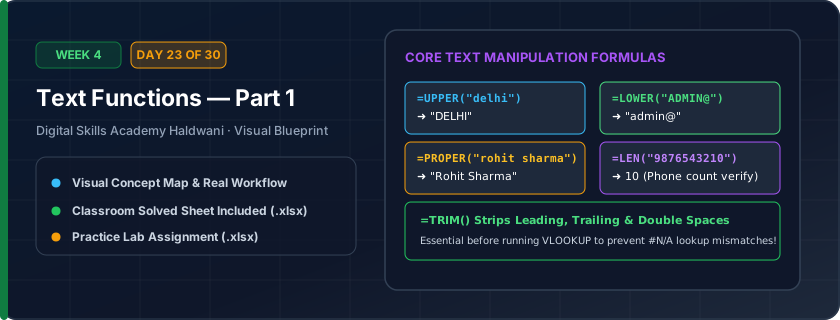
Text transformation functions: =UPPER() turns text to ALL CAPS, =LOWER() to small letters, =PROPER() capitalizes the First Letter Of Each Word, =LEN() counts characters, and & combines text pieces.
Customer names and addresses imported from web forms often arrive in messy lowercase ('rahul sharma') or ALL CAPS. Text functions standardize thousands of customer records in seconds.
"Use PROPER for professional names, and the ampersand (&) with a ' ' space in between to glue text together!"
What You Will Master Today
- =CONCAT(text1, text2) and the '&' ampersand operator to combine strings
- =TEXTJOIN(", ", TRUE, range) to join dozens of cells with automated separators
- =LEFT(text, 3) to extract initial characters (e.g., State codes or year prefixes)
- =RIGHT(text, 4) to extract trailing characters (e.g., last 4 digits of phone or serials)
- =MID(text, start_num, num_chars) to extract substring from the middle of a code
Step-by-Step Practical Walkthrough
To combine First Name in A5 and Last Name in B5, write '=A5 & " " & B5'.
To extract the first 3 letters of an item code, write '=LEFT(A5, 3)'.
To extract the last 4 digits of an invoice, write '=RIGHT(A5, 4)'.
Use =TEXTJOIN for combining address fields with commas while skipping empty cells.
Haldwani Customer Directory - Address Merger & Account Number Parser
Study the completed reference worksheet below. Every column illustrates the standard formatting, formula structure, and alignment applied by professional office operators.
| Account No | First Name | Last Name | Full Name (=A5&" "&B5) | Prefix (=LEFT(A5,3)) | Suffix (=RIGHT(A5,4)) |
|---|---|---|---|---|---|
| HLD-98401 | Rahul | Joshi | Rahul Joshi | HLD | 8401 |
| RDP-76202 | Pooja | Bisht | Pooja Bisht | RDP | 6202 |
| HLD-55103 | Deepak | Rawat | Deepak Rawat | HLD | 5103 |
| DDN-33404 | Sneha | Arya | Sneha Arya | DDN | 3404 |
| NTL-12505 | Amit | Negi | Amit Negi | NTL | 2505 |
Employee Official Email Address Generator & Code Parser
- Task 1: In Column E, generate email address: '=LOWER(B5 & "." & C5 & "@" & D5)' (e.g., vikram.mehra@digitalskillshaldwani.in).
- Task 2: In Column F, extract the 3-letter Branch Code from Emp ID using '=LEFT(A5, 3)'.
- Task 3: Use '=MID(A5, 5, 4)' in a separate column to extract the joining year '2026'.
- Task 4: Verify that formula results adjust automatically if names change.
Exercise Data Template Preview: Download the .xlsx file below and execute each task independently.
| Emp ID | First Name | Last Name | Company Domain | Official Email Address | Branch Code |
|---|---|---|---|---|---|
| KUM-2026-01 | Vikram | Mehra | digitalskillshaldwani.in | ||
| KUM-2026-02 | Neha | Rawat | digitalskillshaldwani.in | ||
| KUM-2026-03 | Karan | Arya | digitalskillshaldwani.in | ||
| KUM-2026-04 | Kavita | Pandey | digitalskillshaldwani.in |
=TEXTJOIN is far superior to older CONCATENATE because it allows you to specify a delimiter once and automatically skips blank cells without extra commas!
Need 1-on-1 Guidance on Day 23?
Join our hands-on classroom lab sessions at Digital Skills Academy in Haldwani. Every student receives a dedicated PC workstation, live instructor reviews, and interview prep.