Mastering Day 18: What, Why & How
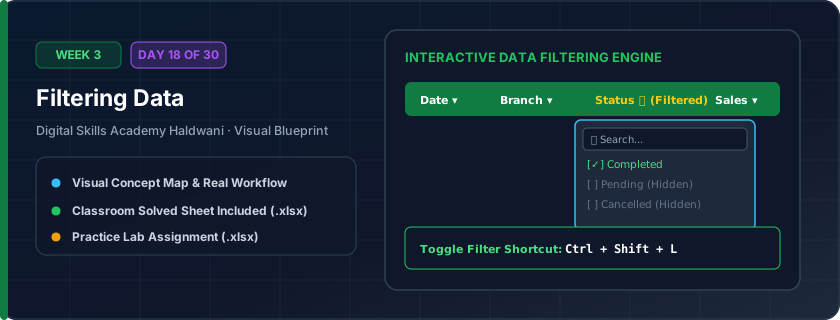
Temporarily hiding rows that do not meet your criteria while displaying only the records you care about. Think of it as a smart sieve or magnifying glass over your dataset.
In a 10,000-row invoice log, filtering lets you view only 'Haldwani Branch' orders with 'Unpaid' status in 2 clicks, without deleting or altering any other data.
"Ctrl + Shift + L turns filters ON and OFF like a light switch! Remember: filtering only hides rows, it never deletes them."
What You Will Master Today
- Activating AutoFilter on table headers using shortcut Ctrl + Shift + L
- Checkbox filtering and instant search bar matching
- Context-aware filters: Text Filters ('Contains', 'Begins With', 'Equals')
- Number Filters ('Greater Than', 'Top 10 Items', 'Above Average')
- Date Filters ('This Month', 'Last Quarter', 'Year to Date')
Step-by-Step Practical Walkthrough
Select any cell in your table and press Ctrl + Shift + L; filter arrow icons appear on each header.
Click the filter arrow in the Category column.
Type a keyword in the Search box or uncheck '(Select All)' and check only desired values.
To remove filter, press Ctrl + Shift + L twice or click 'Clear Filter' in Data tab.
Haldwani Real Estate Property Listings - Filtered View (3-BHK in Haldwani)
Study the completed reference worksheet below. Every column illustrates the standard formatting, formula structure, and alignment applied by professional office operators.
| Property ID | Locality / Area | Property Type | Bedrooms | Covered Area (Sq Ft) | Asking Price (₹) | Status |
|---|---|---|---|---|---|---|
| PROP-101 | Nainital Road | Independent Villa | 3 BHK | 1850 | ₹8,500,000.00 | Available |
| PROP-104 | Kaladhungi Road | Residential Apartment | 3 BHK | 1600 | ₹6,200,000.00 | Available |
| PROP-107 | Mukhani Chauraha | Builder Floor | 3 BHK | 1750 | ₹7,100,000.00 | Under Offer |
| PROP-110 | Pili Kothi | Gated Society Villa | 3 BHK | 2100 | ₹9,500,000.00 | Available |
Customer Feedback & Grievance Portal Database
- Task 1: Press Ctrl + Shift + L to activate AutoFilter arrows on row 4.
- Task 2: Filter Column E to display ONLY records with 'Pending Action'.
- Task 3: Apply a Number Filter on Column F (Days Open) for '> 3' days to identify overdue complaints.
- Task 4: Clear all filters and verify full dataset returns without data loss.
Exercise Data Template Preview: Download the .xlsx file below and execute each task independently.
| Ticket ID | Customer Name | Service Category | Assigned Officer | Resolution Status | Days Open |
|---|---|---|---|---|---|
| TCK-801 | Ramesh Joshi | Broadband Internet | Deepak Rawat | Resolved | 1 |
| TCK-802 | Priya Arya | Mobile SIM Port | Neha Joshi | Pending Action | 5 |
| TCK-803 | Sunil Bisht | Broadband Internet | Deepak Rawat | In Progress | 3 |
| TCK-804 | Kavita Negi | Billing Discrepancy | Amit Negi | Pending Action | 7 |
| TCK-805 | Gaurav Pandey | Broadband Internet | Deepak Rawat | Resolved | 2 |
| TCK-806 | Suman Rawat | Billing Discrepancy | Amit Negi | Pending Action | 4 |
Notice that Excel row numbers turn Blue when a filter is active, indicating that rows matching your criteria are shown and non-matching rows are temporarily hidden!
Need 1-on-1 Guidance on Day 18?
Join our hands-on classroom lab sessions at Digital Skills Academy in Haldwani. Every student receives a dedicated PC workstation, live instructor reviews, and interview prep.