Mastering Day 28: What, Why & How
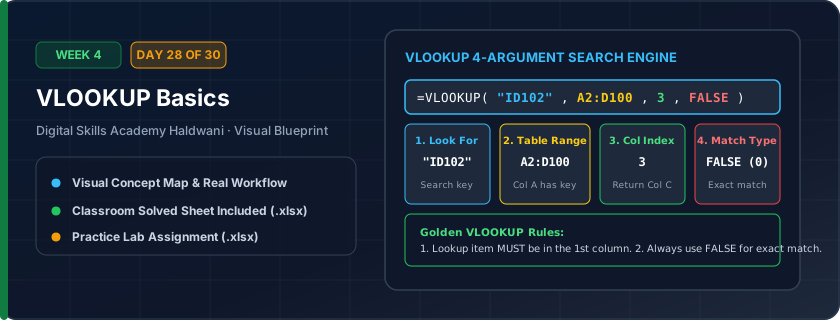
The search engine of Excel. Vertical Lookup searches down the first column of a table for a search key, and brings back information from another column in that matching row. Formula: =VLOOKUP(lookup_value, table_array, col_index, [range_lookup]).
The #1 most requested Excel skill in office job interviews! Used to auto-fill product prices on billing invoices, pull customer details from an ID, or merge records across sheets.
"VLOOKUP Rule of 4: 1. Search Item, 2. Master Table (locked with $), 3. Column Count, 4. ZERO for Exact Match! Always end with 0."
What You Will Master Today
- What VLOOKUP does: Searches for a value in the FIRST column of a table and retrieves data from any column to the right
- Argument 1 (lookup_value): What are you looking for? (e.g. Employee ID, Product Code)
- Argument 2 (table_array): Where is the master table? (Always locked with F4, e.g. $A$5:$E$50)
- Argument 3 (col_index_num): Which column number do you want returned? (1, 2, 3...)
- Argument 4 (range_lookup): Always set to FALSE (or 0) for an Exact Match!
Step-by-Step Practical Walkthrough
In your query cell, start typing '=VLOOKUP('.
Select the lookup cell containing the code you want to search (e.g., I5).
Select the master table range from first column to last, and press F4 to lock it: '$A$5:$D$12'.
Type the column index number (e.g., 2 for Product Name, 3 for Price).
Type FALSE and close parenthesis: '=VLOOKUP(I5, $A$5:$D$12, 2, FALSE)'.
Haldwani Mega Supermarket - Cash Counter Barcode Product Lookup Card
Study the completed reference worksheet below. Every column illustrates the standard formatting, formula structure, and alignment applied by professional office operators.
| Product Code | Product Description | Department | Unit MRP (₹) | Stock In Hand |
|---|---|---|---|---|
| PRD-101 | Aashirvaad Shudh Chakki Atta 10kg | Staples & Grains | 445.0 | 60 |
| PRD-102 | Fortune Sunlite Refined Oil 1L | Oils & Ghee | 145.0 | 85 |
| PRD-103 | Surf Excel Easy Wash Detergent 1kg | Laundry Care | 140.0 | 50 |
| PRD-104 | Tata Salt Iodized Crystal 1kg | Spices & Salt | 28.0 | 120 |
| PRD-105 | Dettol Antiseptic Liquid 500ml | Personal Hygiene | 215.0 | 45 |
| PRD-106 | Nescafe Classic Instant Coffee 100g | Beverages | 320.0 | 30 |
Student Exam Result Search Portal by Roll Number
- Task 1: Create a Search Box in cell I5: Type '1002'.
- Task 2: In cell I6, write VLOOKUP to retrieve Student Name: '=VLOOKUP(I5, $A$5:$F$9, 2, FALSE)'.
- Task 3: In cell I7, write VLOOKUP to retrieve Total Marks: '=VLOOKUP(I5, $A$5:$F$9, 5, FALSE)'.
- Task 4: In cell I8, write VLOOKUP to retrieve Result Status: '=VLOOKUP(I5, $A$5:$F$9, 6, FALSE)'.
- Task 5: Change I5 to '1005' and observe how all student details update instantly!
Exercise Data Template Preview: Download the .xlsx file below and execute each task independently.
| Roll No | Student Name | Father Name | Class Grade | Total Marks | Result Status |
|---|---|---|---|---|---|
| 1001 | Aarav Rawat | Suresh Rawat | Grade 10 | 445 | Pass |
| 1002 | Bhumika Joshi | Harish Joshi | Grade 10 | 464 | Pass |
| 1003 | Chetan Negi | Mohan Negi | Grade 10 | 349 | Pass |
| 1004 | Deepak Arya | Kewal Arya | Grade 10 | 319 | Pass |
| 1005 | Ekta Bisht | Dinesh Bisht | Grade 10 | 470 | Pass |
Remember: VLOOKUP can ONLY look to the right! The lookup value MUST be located in the very first column (Column 1) of your table array.
Need 1-on-1 Guidance on Day 28?
Join our hands-on classroom lab sessions at Digital Skills Academy in Haldwani. Every student receives a dedicated PC workstation, live instructor reviews, and interview prep.