Mastering Day 17: What, Why & How
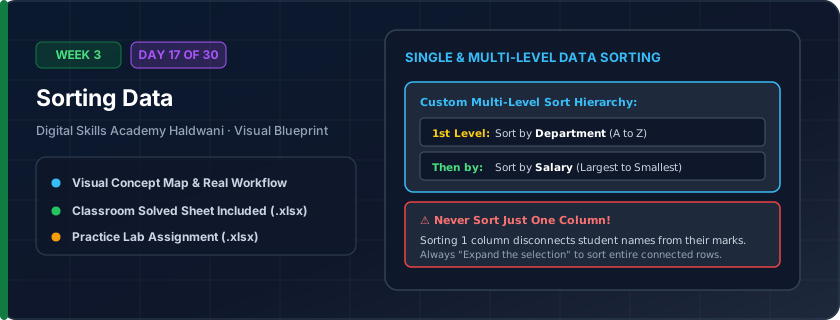
Reorganizing rows of data alphabetically (A to Z), numerically (smallest to largest / highest to lowest), by date, or multi-level (e.g., by Department first, then by Salary).
Raw data arrives in random order. Sorting instantly surfaces your top-selling products, most recent customer orders, or groups employees by branch for cleaner analysis.
"Click 1 cell inside the column before sorting. Never select 1 column alone — Excel needs to keep the entire row together!"
What You Will Master Today
- Single-column quick sort: A to Z (Ascending) vs Z to A (Descending)
- Sorting numbers from Smallest to Largest vs Largest to Smallest
- Multi-level custom sorting: Sort by Department (A-Z) THEN by Salary (High to Low)
- Ensuring 'My data has headers' is checked to prevent sorting table header rows
Step-by-Step Practical Walkthrough
Select any single cell inside your data table (do NOT select only one column to prevent unlinking rows).
Go to Data tab > Sort.
In the Sort dialog, choose your Primary Sort Column and Order.
Click 'Add Level' to add a Secondary Sort Column and click OK.
Haldwani Corporate Office - Master Employee Directory (Multi-Level Sorted)
Study the completed reference worksheet below. Every column illustrates the standard formatting, formula structure, and alignment applied by professional office operators.
| Emp ID | Employee Name | Department | Work Location | Monthly Salary (₹) | Joining Date |
|---|---|---|---|---|---|
| EMP-102 | Pooja Bisht | Accounts & Finance | Rudrapur | ₹52,000.00 | 2022-04-15 |
| EMP-108 | Virendra Joshi | Accounts & Finance | Haldwani Main | ₹41,000.00 | 2023-08-01 |
| EMP-104 | Sneha Arya | Human Resources | Dehradun | ₹48,000.00 | 2021-11-10 |
| EMP-105 | Amit Negi | Information Tech | Haldwani Main | ₹55,000.00 | 2020-03-20 |
| EMP-101 | Rahul Joshi | Sales & Marketing | Haldwani Main | ₹45,000.00 | 2022-01-10 |
| EMP-107 | Gaurav Tewari | Sales & Marketing | Rudrapur | ₹42,000.00 | 2024-02-15 |
E-Commerce Dispatch Queue Priority Ranking
- Task 1: Sort the queue alphabetically by Destination City (A to Z).
- Task 2: Apply a 2-level custom sort: First by Customer Type (Corporate to Retail), THEN by Order Value (Largest to Smallest).
- Task 3: Verify that highest-value corporate orders rise to the top for immediate dispatch.
Exercise Data Template Preview: Download the .xlsx file below and execute each task independently.
| Order ID | Destination City | Customer Type | Order Value (₹) | Urgency Level |
|---|---|---|---|---|
| ORD-501 | Haldwani | Retail | ₹4,500.00 | Standard |
| ORD-502 | Rudrapur | Corporate | ₹35,000.00 | High Priority |
| ORD-503 | Nainital | Retail | ₹2,800.00 | Standard |
| ORD-504 | Haldwani | Corporate | ₹48,000.00 | Urgent Express |
| ORD-505 | Dehradun | Retail | ₹6,200.00 | Standard |
| ORD-506 | Rudrapur | Corporate | ₹18,500.00 | High Priority |
NEVER highlight just one column when sorting unless you want to scramble your data! Always select a single cell inside the table or select the entire table range.
Need 1-on-1 Guidance on Day 17?
Join our hands-on classroom lab sessions at Digital Skills Academy in Haldwani. Every student receives a dedicated PC workstation, live instructor reviews, and interview prep.