Mastering Day 19: What, Why & How
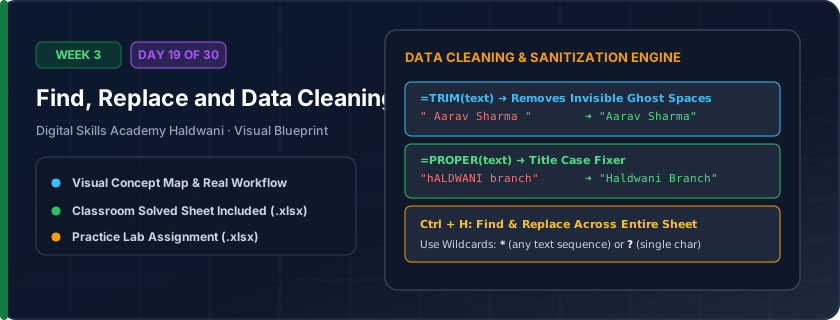
Sanitizing messy raw data by stripping invisible spaces, correcting misspellings across sheets, and purging duplicate rows.
'Garbage in, garbage out' — if a customer city is typed as ' Haldwani ' with accidental spaces or 'Hldwn', VLOOKUP, pivot tables, and SUMIF formulas will fail. Clean data ensures trustworthy reports.
"TRIM eliminates invisible space traps; Ctrl + H fixes repeated mistakes in 1 click; Remove Duplicates keeps databases pure."
What You Will Master Today
- Find and Replace dialog options: Match case, Match entire cell contents
- Eliminating invisible leading and trailing spaces with =TRIM(text)
- Fixing mixed capitalization (e.g., 'rAhUl JoSHi') using =PROPER(text)
- Data > Remove Duplicates tool to eliminate redundant customer records
Step-by-Step Practical Walkthrough
Press Ctrl + H to open the Find and Replace dialog.
In 'Find what', type the old string (e.g., 'Hld') and in 'Replace with', type 'Haldwani'.
Click 'Replace All' to update hundreds of cells across the entire sheet simultaneously.
Insert an adjacent helper column and type '=PROPER(TRIM(B5))' to sanitize messy names.
Haldwani City Hospital - Cleaned Patient Registration Records
Study the completed reference worksheet below. Every column illustrates the standard formatting, formula structure, and alignment applied by professional office operators.
| Patient ID | Raw Messy Name | Cleaned Sanitized Name | City Code | Standardized City | Mobile No |
|---|---|---|---|---|---|
| PAT-901 | rAhUl jOsHi | Rahul Joshi | HLD | Haldwani | 9876543210 |
| PAT-902 | pooja BISHT | Pooja Bisht | RDP | Rudrapur | 9812345678 |
| PAT-903 | DEEPAK rawat | Deepak Rawat | HLD | Haldwani | 9012398765 |
| PAT-904 | sneha aRyA | Sneha Arya | DDN | Dehradun | 9411122334 |
| PAT-905 | amit negi | Amit Negi | NTL | Nainital | 9634567890 |
Raw E-Commerce Customer Address Directory (Uncleaned)
- Task 1: In Column C, apply formula '=PROPER(TRIM(B5))' to strip leading/trailing spaces and format proper name casing.
- Task 2: Copy Column C and Paste Special as Values (Alt + E + S + V) to lock cleaned text.
- Task 3: Use Ctrl + H to find 'UK' and replace with 'Uttarakhand' across Column D.
- Task 4: Check for duplicate rows using Data > Remove Duplicates on Customer ID.
Exercise Data Template Preview: Download the .xlsx file below and execute each task independently.
| Customer ID | Raw Full Name | Cleaned Name (=PROPER(TRIM())) | State Abbreviation | Cleaned State |
|---|---|---|---|---|
| CUST-301 | vikram mehra | UK | ||
| CUST-302 | neha RAWAT | UK | ||
| CUST-303 | karan arya | UP | ||
| CUST-304 | kavita PANDEY | UK | ||
| CUST-305 | gaurav TEWARI | UK |
Paste Special as Values is crucial after data cleaning! If you delete the raw column before pasting values, your formulas will return '#REF!' errors.
Need 1-on-1 Guidance on Day 19?
Join our hands-on classroom lab sessions at Digital Skills Academy in Haldwani. Every student receives a dedicated PC workstation, live instructor reviews, and interview prep.